 SiteProof Local edition
Browser workspace · Optional extension v0.1.3
Your first report starts here.
Open the free workspace on a desktop browser, upload your screenshots and create a report. No account or extension is needed. Add the optional extension if you want to capture the visible page.
See the product walkthroughStart without installation
- Open the browser workspace with JavaScript and local browser storage enabled.
- Select New project, then add a before and after screenshot for each change.
- Save your work and export a client report. Download a separate Project backup if you need to keep or transfer the editable project.
The workspace processes your images locally. Loading the website requires a connection; it is not an installable offline app. Exported HTML reports work offline.
Optional: install the capture extension
The free Chrome and Edge extension adds Capture visible page for normal websites. It is version 0.1.3, distributed directly, and has no store listing yet. It uses developer mode; a managed work browser may block installation.
Download and extract the ZIP
Extract the entire archive into a folder you will keep, such as SiteProof in your documents. The folder should directly contain manifest.json, app.html and the other extension files.
Keep the extracted folder in place while the extension is installed. Your browser loads this folder, not the ZIP itself.
Open your browser’s extensions page
Copy the address for your browser and paste it into the address bar.
chrome://extensionsedge://extensionsTurn on Developer mode
In Chrome, use the switch at the top right. In Edge, the switch may be in the left sidebar.
Select “Load unpacked”
Choose the extracted SiteProof folder containing manifest.json. SiteProof should now appear in your list of extensions.
Open the workspace
Pin SiteProof through the browser’s extensions menu. Click its toolbar icon and choose Open workspace.
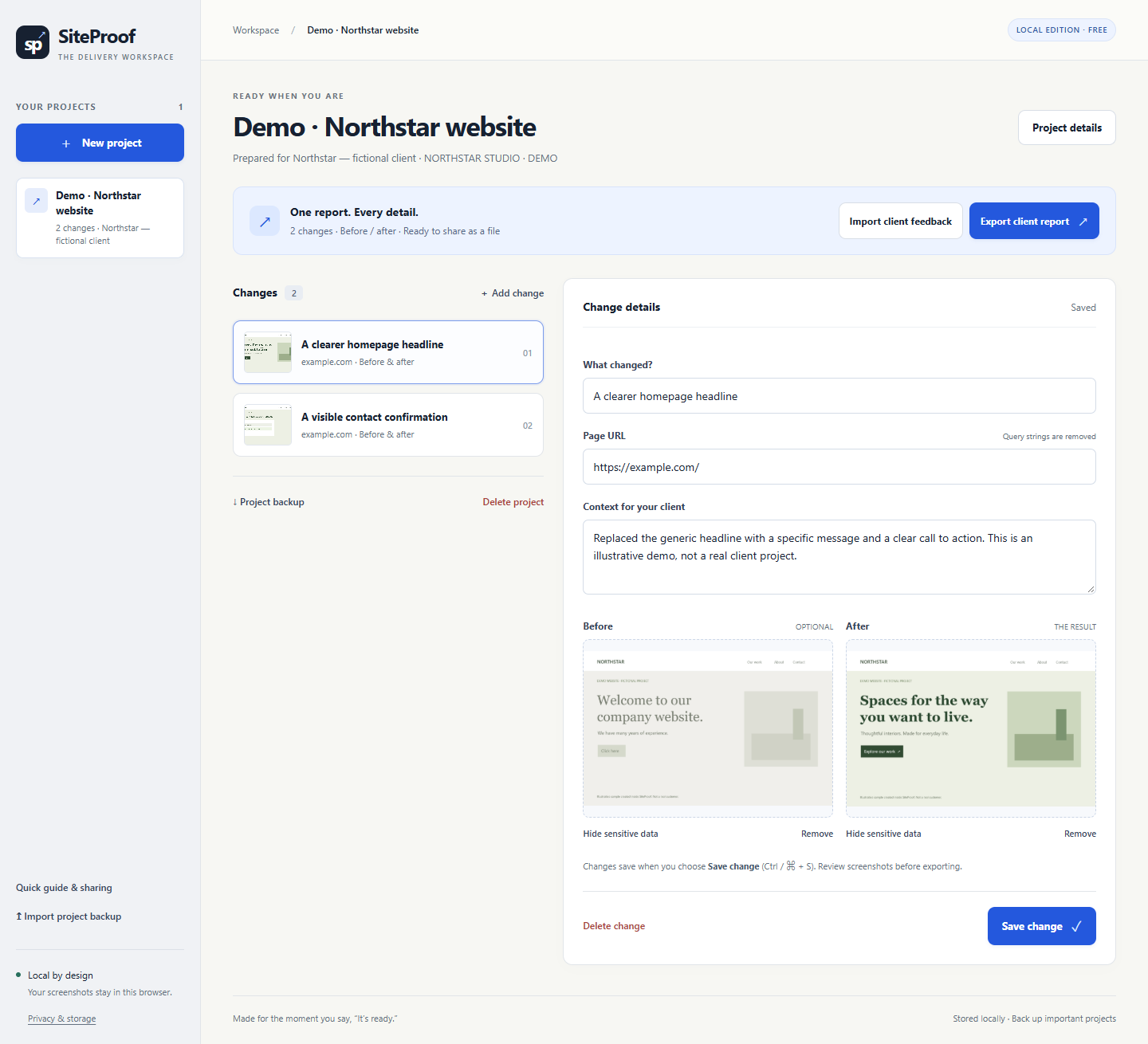
You can explore the fictional demo or select New project to start your own.
Make your first before-and-after report
Create a project
Select New project. Enter the project name, client name and your studio / brand, then choose Save project. The studio name appears on the exported report.
Add the visual change
Choose Add change. Give the change a clear title, write a short explanation and add the page URL. Upload a before and after image, or use captured page images.
Capture is available in the extension only. To capture from a website, open a normal http:// or https:// page, click SiteProof in the browser toolbar and choose Capture visible page. This captures only the visible viewport.
Prepare the images
Cover sensitive areas with the redaction tool, inspect the result and choose Save change. Make sure the screenshots only contain information you are allowed to share.
Export and review
Choose Export client report. Open the downloaded HTML file in your browser and check the notes, images and client details.
Send the report
Share the HTML file through your usual email or messaging service. Your client opens it in a browser without installing SiteProof. The file includes its images and can be reviewed offline.
To make a PDF, open the exported HTML report, print it and choose your browser’s Save as PDF option. PDF printing is provided by your browser.
Receive client feedback
The client opens your report in a browser, chooses a decision and downloads a feedback JSON file. They send that file back using your usual email or messaging service.
In your workspace, choose Import client feedback and select that JSON file. SiteProof attaches it to the matching project and report version. If you later edit the report, the earlier feedback remains a record of the earlier version.
The report does not send feedback automatically. Feedback is a working review record; SiteProof does not verify the recipient’s identity or provide electronic signatures.
Hand a project to a colleague
Each browser keeps its own local projects. Use a project backup when a colleague needs to continue editing your work.
- Save your current change, then choose Project backup to download the project JSON file.
- Send that file to your colleague through an appropriate email, chat or file service. It contains project details and images, so review it before sharing.
- Your colleague opens the browser workspace or their installed extension and chooses Import project backup. A JSON backup moves the project between these separate stores.
- They select the received JSON file, continue editing, then send you a new backup if the project needs to return to you.
Keep one current project copy
Agree who is editing before exchanging a new backup. SiteProof does not merge edits or sync browser projects. Importing an existing project ID offers a separate copy by default. Replacing the current project requires explicit confirmation; export a backup before replacing work you need to keep.
Client feedback is stored separately and is not included in a project backup. Keep and share the original feedback JSON files separately. Import the project backup before importing its client feedback.
Keep a separate backup
Use Project backup to save a JSON file containing your project and images. Keep client feedback JSON files separately: they are not included in that backup.
Local browser storage is not a backup. Website data may disappear if you clear this site’s browser data or use a temporary/private profile. Export your work before clearing browser data, removing the extension or changing its installed folder. Already exported HTML, PDF and JSON files stay where you saved them.
When something does not work
- “Manifest missing”: choose the extracted folder that directly contains manifest.json, not its parent folder.
- Capture unavailable: use a normal website. Browser settings, local files and restricted pages cannot be captured. SiteProof captures only the visible part of the page.
- Cannot install at work: your organization may block developer mode or unpacked extensions. Ask your browser administrator.
- Updating: export backups first, replace the files in the same installed folder, then select Reload on the browser’s extensions page.
Read the data policy · Contact supportUse the assisted request page to prepare a support email.